Short answer: List who runs the app and what each role does, then write short task pages in the staff's own words: one task per page, numbered steps, one screenshot per step that matters. Add a flow diagram of the main process, a "when something goes wrong" page with a named contact, and test the docs with someone new.
You built an internal app for the office, and the questions never stop. Staff call the one person who knows how it works.
Screen tours do not help someone stuck halfway through a task. Task-based docs let staff finish their work without waiting for help.
In this guide, you'll learn:
- Why internal apps fail after launch
- The seven steps to docs staff can follow
- The mistakes that make manuals go unread
- A checklist to run before you hand over
Use the sections below as your playbook.
Why internal apps fail after launch
An internal app rarely fails on launch day. It fails months later, when the person who asked for it moves on, a new hire joins, and nobody can explain why a request is stuck in "pending". Staff go back to the spreadsheet. The app still runs, but the work happens elsewhere.
The fix is not a longer manual. It is documentation written for the people who run the app every day: reception, finance, field supervisors, case officers. They do not need to know how the app is built. They need to know what to do next, and who to call when it breaks.
This guide is for agencies handing over an app to a client, and for small IT teams inside a business or a public body.
Step by step
Step 1: List who runs the app and what they do
Start with people, not screens. Make a table of every role that touches the app and the tasks each role does. Mark how often: daily, weekly, rarely.
| Role | Daily tasks | Rare tasks |
|---|---|---|
| Reception | Book and move appointments | Block a day for a holiday |
| Manager | Approve requests | Add a new staff member |
| Admin | Check the day's report | Change a price or a rule |
The daily tasks need the best docs. Rare tasks need docs too, because nobody remembers how to do them. Those are the pages people will search for in a panic.
If the app was planned with clear roles, most of this table already exists in the requirements. Reuse it.
Step 2: Split the docs by purpose
One long manual tries to teach, explain and answer questions at once, and does none of them well. One well-known model, the Diátaxis framework by Daniele Procida, splits documentation into four kinds: tutorials, how-to guides, technical reference and explanation. Each answers a different need. Canonical, which adopted it, sums it up as "A tutorial is a lesson," "A how-to guide is a recipe," "Reference material is description," and "Explanation is discussion."
For an internal app, that maps to:
- Getting started (lesson): a first walk through the main task with sample data, for new staff.
- Task pages (recipes): "How to approve a leave request", "How to reopen a closed work order".
- Reference: what each status means, what each field is for, who can do what.
- Why it works this way (explanation): the rules behind the process, such as why two approvals are needed.
Keep them separate. A task page that stops to explain policy is harder to follow.
Step 3: Write task pages in the staff's words
Each task page follows the same shape:
- Title as a task: "How to cancel an appointment", not "Appointment management".
- Who and when: "Reception, when a patient calls to cancel."
- Numbered steps: one action per step, naming the exact button or field.
- What you should see: the result, so people know it worked.
- If it doesn't work: one or two common problems and the fix.
Use the words staff use at their desk, not the words in the database. If they say "job" and the app says "work order", write "work order (job)" once, then stick to one term. Keep a short glossary.
Keep sentences short. GOV.UK's content guidance sets a limit of 25 words per sentence and cites research that readers understand more at shorter average sentence lengths. That is a good rule for a manual read by busy people between tasks.
Add a screenshot only where it helps someone find the right button. Too many screenshots go out of date at every screen change.
Step 4: Show the flow, not just the screens
Staff get lost between screens, not on them. A request goes from the employee to the manager to HR, and nobody knows where it is. A simple flow diagram fixes that. Show who does what, in order, and what status the item has at each point.
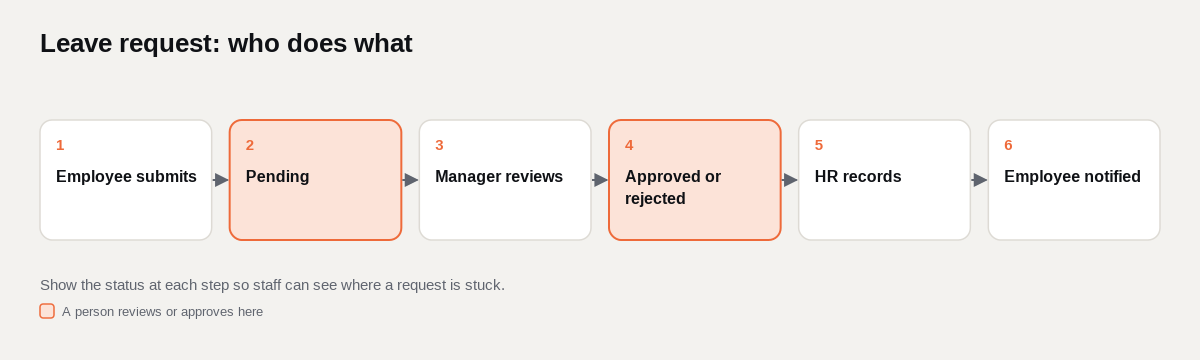
Print it, pin it near the desks, and put it at the top of the reference section.
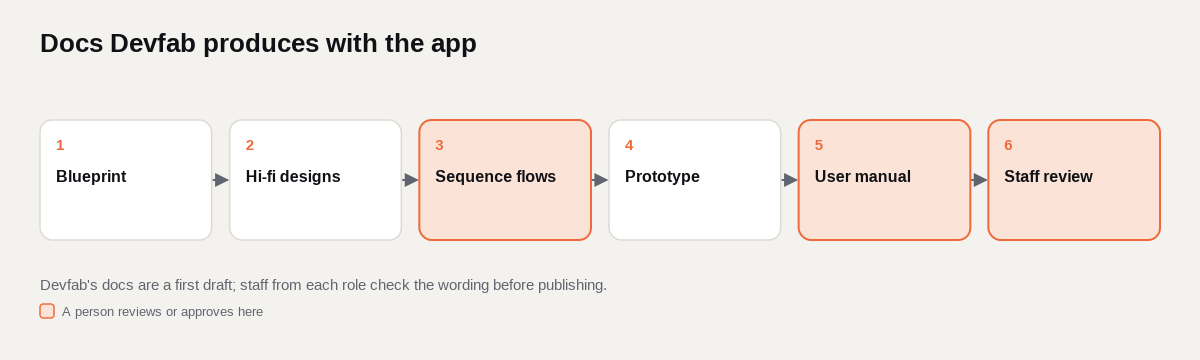
If the app was built with Devfab, you start ahead here. Devfab produces blueprints, hi-fi designs, sequence flows, prototypes and user manuals as part of the project. The sequence flows show how a request moves through the system, and the user manual covers the main tasks per role. Treat them as a first draft. Have one person from each role read them and change any wording that does not match how they talk about the work.
Step 5: Write the "when something goes wrong" page
This is the page staff will need most and the one most teams skip. It answers:
- Who do I contact? A named person or team, and how to reach them. Not "IT".
- What do I tell them? What you were doing, the screen, the message, the time.
- What can I do meanwhile? The manual fallback, such as "write it on the paper form and enter it later".
- What should I never do? For example, "do not delete and re-create a request to fix it".
If the app has a feedback or bug report button, explain it here. In Devfab, the feedback module turns user reports into tickets and notifies the people who reported them when there is an update. Staff are more likely to report problems when they hear back.
Step 6: Keep docs in step with the app
Documentation decays every time the app changes. Make updating it part of the change, not a separate job:
- Every ticket that changes a screen or a rule includes "update the task page" in its definition of done.
- Each task page shows the date it was last checked.
- One named person owns the docs and reviews them on a set schedule.
Keep the docs next to the code or linked from inside the app, not in someone's personal drive. With Devfab, code lives in your own GitHub account (or your organization's), so docs that live in the repository go wherever the app goes.
Step 7: Test the docs with a new person
The only real test is a person who has never used the app. Give them a task page and a task, then watch without helping. Every place they pause is a fix. Every question they ask is a missing line.
Repeat it whenever someone new joins. New staff are your best reviewers, for a short while.
Common mistakes
- Describing screens instead of tasks. "The dashboard shows four panels" helps nobody do their job.
- Writing for developers. Field names, status codes and database terms confuse staff.
- One giant manual. People search for one task and give up on a long document.
- No named contact. "Contact IT" in a small business often means nobody.
- Screenshots everywhere. They go stale fast and make pages long.
- No owner. Docs without an owner are out of date after the first change.
- Never testing with a new person. The writer always understands their own docs.
Checklist
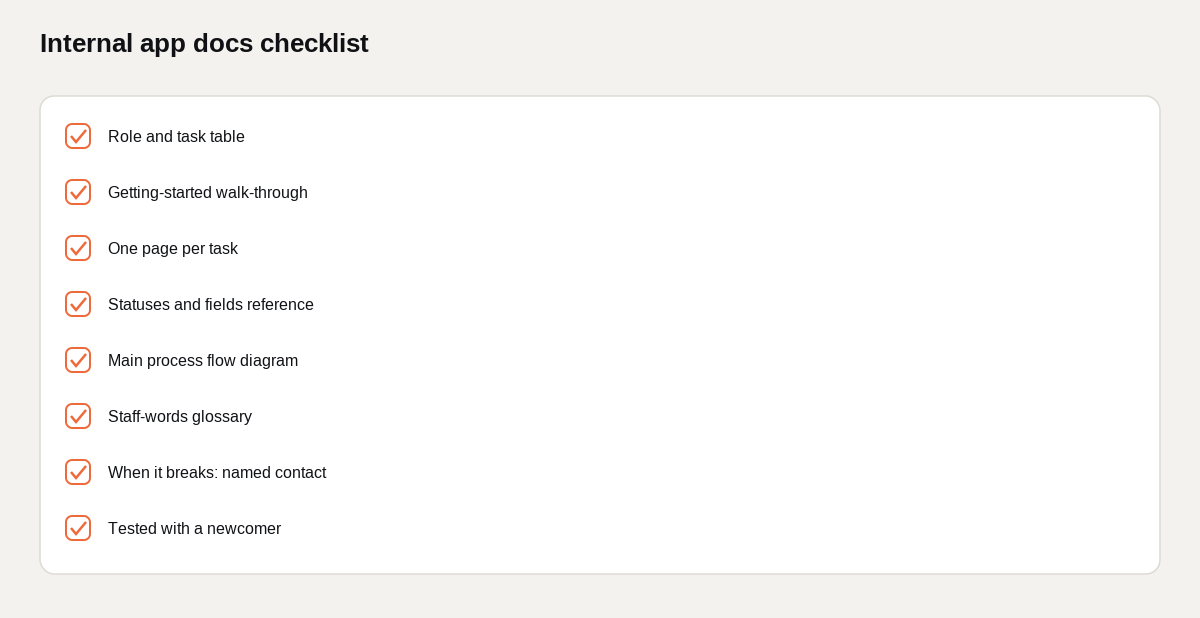
- [ ] Role and task table, marked daily, weekly or rare
- [ ] Getting-started walk-through with sample data
- [ ] One task page per task, numbered steps, expected result
- [ ] Reference: statuses, fields, who can do what
- [ ] Flow diagram of the main process
- [ ] Glossary in the staff's own words
- [ ] "When something goes wrong" page with a named contact
- [ ] Docs update in every ticket's definition of done
- [ ] Named owner and last-checked date on each page
- [ ] Tested with someone who never used the app
FAQ
What is the minimum documentation an internal app needs?
A one-page guide per role with their main tasks, a short glossary of terms, a "when something goes wrong" page with a named contact, and a flow diagram of the main process. Technical docs for the developers come on top.
Should we record videos instead of writing manuals?
Use both if you can. Short videos help people learn a task the first time. Written task pages are faster to search and easier to keep up to date when a screen changes.
Who should write the user manual?
Someone who knows the work, with help from someone who knows the app. Then test it with a person who has never used the app. Developers alone tend to describe screens instead of tasks.
What documentation does Devfab produce?
Devfab produces blueprints, hi-fi designs, sequence flows, prototypes and user manuals as part of a project. Treat them as a strong first draft: have staff review the wording before you publish them internally.
Read next
- What is an AI software factory?
- How AI agents handle bug reports from customers
- How to deploy an AI-built app to your own server
- Build: public works asset tracker
- Internal tool builder vs custom app: which fits your team?
- Low-code vs AI software factory: what's the difference?
Devfab is in Beta. See the manuals and flows it produces on your own project. Try Beta
Sources (checked November 2026): Diátaxis; Canonical: Diátaxis, a new foundation for Canonical documentation; Inside GOV.UK: Sentence length, why 25 words is our limit.
Frequently asked questions
What is the minimum documentation an internal app needs?
A one-page guide per role with their main tasks, a short glossary of terms, a 'when something goes wrong' page with a named contact, and a flow diagram of the main process. Technical docs for the developers come on top.
Should we record videos instead of writing manuals?
Use both if you can. Short videos help people learn a task the first time. Written task pages are faster to search and easier to keep up to date when a screen changes.
Who should write the user manual?
Someone who knows the work, with help from someone who knows the app. Then test it with a person who has never used the app. Developers alone tend to describe screens instead of tasks.
What documentation does Devfab produce?
Devfab produces blueprints, hi-fi designs, sequence flows, prototypes and user manuals as part of a project. Treat them as a strong first draft: have staff review the wording before you publish them internally.