Short answer: First map what the spreadsheet really does: who edits it, which formulas carry business rules, and which tabs are really screens. Turn columns into records and formulas into written rules. Pick a build path (no-code, low-code or a custom app), write a one-page spec, import cleaned data, run both side by side, then retire the sheet.
Your business runs on a shared spreadsheet, and one person knows how it works. Every month someone sorts a column and breaks a lookup. Nobody can say who changed the refund amount.
The sheet is not the problem. It quietly became an app without rules, roles or history. Replacing it well means keeping what it does and fixing what it can't.
In this guide, you'll learn:
- The signs a sheet has outgrown itself
- Eight steps from sheet to app
- Mistakes that make people go back to the sheet
- A checklist for go-live
Our example is a customer returns log used by a small distributor.
Step by step
Step 1: Check that the sheet should be replaced
Not every spreadsheet needs an app. Replace it when you see two or more of these:
- Several people edit it at the same time and overwrite each other.
- A wrong cell costs money: a refund, a stock count, an invoice.
- People need different rights, but everyone can see and change everything.
- You need to know who changed what, and when.
- Staff in a warehouse or on site need it on a phone.
- Someone copies data from it into another system by hand.
Returns example: warehouse staff, customer service and finance all edit the same file. Refunds are approved in a comment thread. The return rate per product is a pivot table only one person can refresh.
Step 2: Map what the sheet really does
Open the file with the people who use it. Write down each tab, who edits it, which columns they fill, and what they do next. Look for hidden logic: formulas, conditional colors, data validation lists, macros and pivot tables.
Some tools now do part of this for you. Glide's SheetSense, for example, scans an uploaded spreadsheet for formulas, macros, pivot tables and charts and asks you to confirm before it builds. Whatever tool you use, check its reading against what people actually do. A yellow cell may mean "waiting for finance," and no tool knows that.
Step 3: Turn columns into records and tabs into screens
Columns become fields. Groups of columns that repeat become their own records. Tabs often become screens or lists.
Returns example:
| In the sheet | In the app |
|---|---|
| One row per return, with customer columns repeated | Return record linked to a Customer record |
| "Status" column with colors | Status field: Requested, Received, Inspected, Refunded, Rejected |
| "Finance" tab | Refund approval screen for finance only |
| Pivot of returns per product | Report screen, always current |
Step 4: Turn formulas and habits into rules
Every formula and every "we always do it this way" is a rule. Write each one as a sentence someone can test:
- A refund can't exceed the original order value.
- Refunds over a set limit need a finance approval.
- A return can't be refunded before the item is marked received.
- Every status change records who made it and when.
This is the step people skip, and it's the one that makes the app better than the sheet. A spreadsheet can't stop a wrong value. An app can.
Step 5: Pick the build path
There are three common paths. Microsoft's own definition helps: low-code "requires some custom coding" and is used mostly by IT staff, while no-code needs no coding and suits business users.
- No-code on top of the sheet. Fastest start, and the sheet can stay the data source for a while. Good when the app is simple and business staff will run it.
- Low-code platform. Good when IT already runs a platform such as Power Apps and the app mostly needs that vendor's connectors. You pay per user or per app and work inside the vendor's environment.
- Custom app. Good when the rules are specific, the app needs to run on your own server, outside users need access, or you don't want platform licenses tied to user counts. More ownership, and more responsibility.
We compare the last two in more depth in Internal tool builder vs custom app.
Step 6: Write a one-page spec
Put steps 2 to 4 on one page: the problem, users and roles, must-have flows, data, rules and what "done" means. Attach the old spreadsheet so the builder sees real data. Our guide on how to write a software spec that AI agents can build from covers each part.
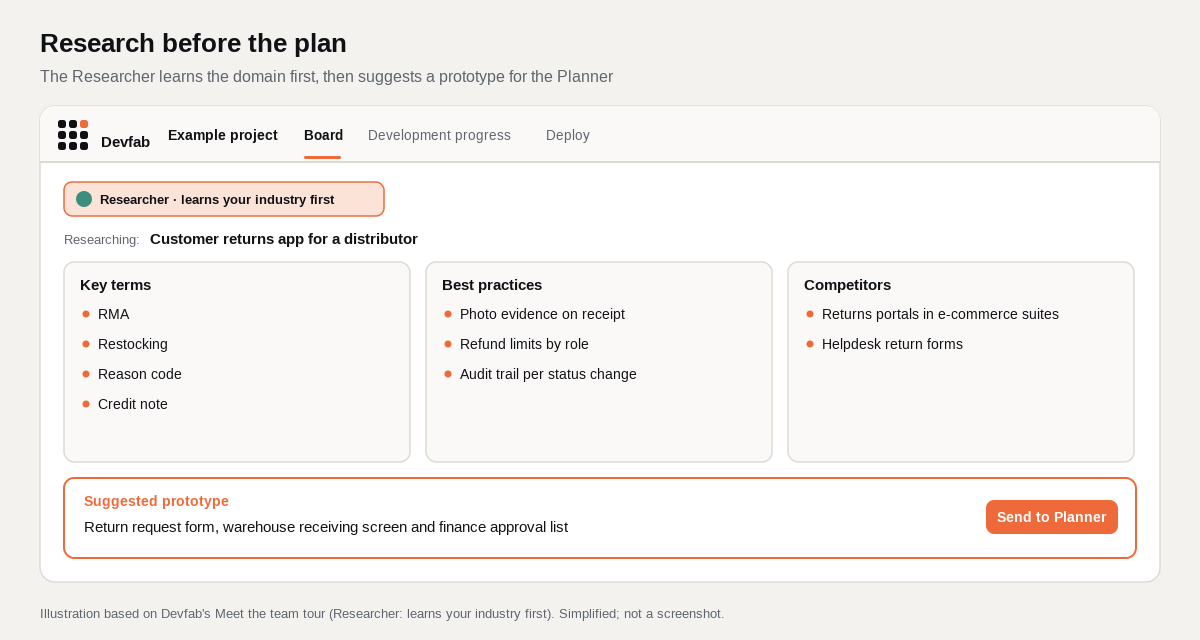
If you build with Devfab, the spec goes into "What should we build?" with the spreadsheet attached. Before any plan, Devfab's research step maps the domain: for a returns app that means terms like RMA and restocking, best practices such as photo evidence and reason codes, and how similar products handle it. It then suggests a prototype you can look at before anything is built.
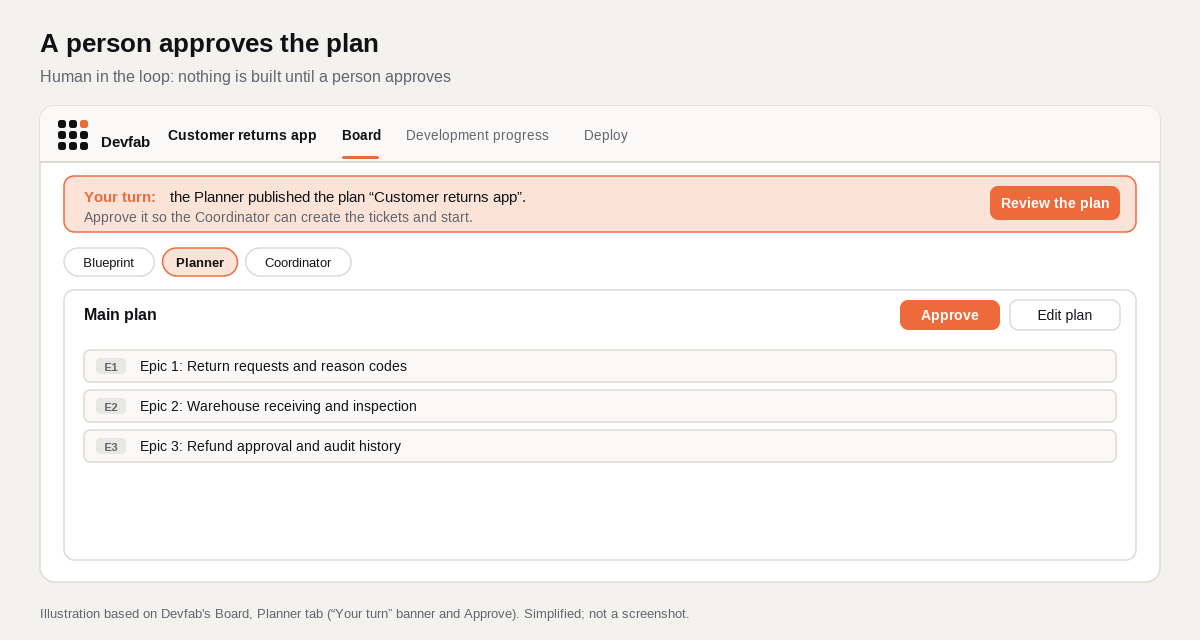
The Planner then publishes a plan and a person approves it before the Coordinator creates tickets. That is where you check that every rule from step 4 made it in.
Step 7: Move the data and run both side by side
Clean the data before import: one value per cell, consistent dates, one spelling per customer, no merged cells. Import, then compare row counts and totals with the sheet. Keep both running for a short period, with the app as the place new returns are entered.
Test the journeys people really do, not only single screens. Devfab's QA agent runs UI and flow tests (screens, buttons and user journeys clicked end to end) plus logic tests, such as "refund blocked before the item is received."
Step 8: Retire the spreadsheet on purpose
Set a cut-over date, make the sheet read-only, and say so to everyone. Give people a short user guide. Devfab produces user manuals with the app, and its feedback module turns user reports into tickets and tells the reporter when they're handled. For more on handover, see How to document an internal app so non-technical staff can use it.
Common mistakes
- Copying the sheet screen by screen. You rebuild the mess. Model records and rules instead.
- Missing hidden rules. Colors, comments and "ask Maria" are rules too.
- Importing dirty data. Duplicates in the sheet become duplicates in the app.
- No owner for the app. The sheet had an owner; the app needs one too.
- Leaving the sheet editable. People will keep using it, and you'll have two truths.
- Skipping roles. If everyone can do everything, you've built a slower spreadsheet.
Checklist
- [ ] Two or more replacement signs confirmed
- [ ] Every tab, formula, macro and pivot listed with its owner
- [ ] Records, fields and links defined
- [ ] Rules written as testable sentences
- [ ] Build path chosen with reasons
- [ ] One-page spec written, sheet attached
- [ ] Data cleaned, imported and totals matched
- [ ] Sheet made read-only on a set date
FAQ
When should a spreadsheet become an app?
When several people edit it at once, when mistakes cost money, when people need different rights, when you need a history of who changed what, or when staff outside the office need it on a phone. One person tracking their own numbers can keep the sheet.
Can I keep using Excel or Google Sheets as the database?
For a while, yes. Tools such as Glide build apps on top of spreadsheets. For rules, permissions and audit history, a real database is safer, and the sheet becomes an export rather than the source of truth.
Should I use no-code, low-code or a custom app?
No-code fits simple apps run by business staff. Low-code fits IT teams on one vendor's platform. A custom app fits when the rules are specific, the app must run on your own server, or you don't want per-user platform licenses.
How do I move the data out of the spreadsheet?
Clean it first: one value per cell, consistent dates and names, no merged cells. Import it into the new app, compare totals and counts with the sheet, then run both side by side until the numbers match.
Read next
- What is an AI software factory?
- How to write a software spec that AI agents can build from
- Internal tool builder vs custom app
- Build: public works asset tracker
Got a spreadsheet that runs part of your business? See it as an app plan first, then decide. Try the Devfab Beta
Sources (checked November 2026): Microsoft: Low-code vs no-code app development; IBM: Low-code vs no-code; Glide: GlideOS launch recap; Power Platform licensing FAQs.
Frequently asked questions
When should a spreadsheet become an app?
When several people edit it at once, when mistakes cost money, when people need different rights, when you need a history of who changed what, or when staff outside the office need it on a phone. One person tracking their own numbers can keep the sheet.
Can I keep using Excel or Google Sheets as the database?
For a while, yes. Tools such as Glide build apps on top of spreadsheets. For rules, permissions and audit history, a real database is safer, and the sheet becomes an export rather than the source of truth.
Should I use no-code, low-code or a custom app?
No-code fits simple apps run by business staff. Low-code fits IT teams on one vendor's platform. A custom app fits when the rules are specific, the app must run on your own server, or you don't want per-user platform licenses.
How do I move the data out of the spreadsheet?
Clean it first: one value per cell, consistent dates and names, no merged cells. Import it into the new app, compare totals and counts with the sheet, then run both side by side until the numbers match.